Notes
A confidence score is not a guarantee
Open the Read demo and every field has a percentage next to it. A 99 looks reassuring. It is not a promise. This post says what that number is in our demo today, what raises a flag, and what the person checking the table sees. We wrote it from the demo's source code.
What the number is
The demo at read.corteal.com does not run a model on the page. Each sample document ships with a list of fields, and each field is a small record we wrote by hand: a key, a label, the value, a percentage, and the id of the shape on the drawing where the value sits. The first field of the sample drawing looks like this.
{ key: "part_number", label: "Part number", value: "BRK-2214",
              conf: 99, el: "d-pn" }
The part number is invented, like every value in the samples. The 99 is a number we typed, and so is every other percentage on the page. The tooltip on the number still says "Model confidence", which reads wrongly for a demo, because nothing was measured.
The samples carry an "Illustrative example" label. We have no accuracy figure for Read to publish. We will publish measured numbers once Read runs on real documents. Until then we cannot say how often a 99 is right.
What raises a flag
In the code, a field is flagged when it carries a short note. That is the only test. The line under the table, "14 of 15 fields ready to import. 1 to review.", counts the fields without a note and the fields with one. No line of code compares a percentage with a threshold.
We like that property and want to keep it, because the reason matters more than the score. The note says in words what a person should look at. These are from the samples: "Year inferred from upload date", "Relative date, confirm the week", "Material is a brand name, not a standard grade". An 84% next to "No leader to a surface: one face or the whole part?" tells you what to do. An 84% alone only tells you to worry.
We also chose the percentages. The six flagged fields in the samples sit between 84 and 89, and every other field is 90 or higher. We counted that by hand. It is how we wrote the data, and the code does not enforce it.
What the reviewer sees
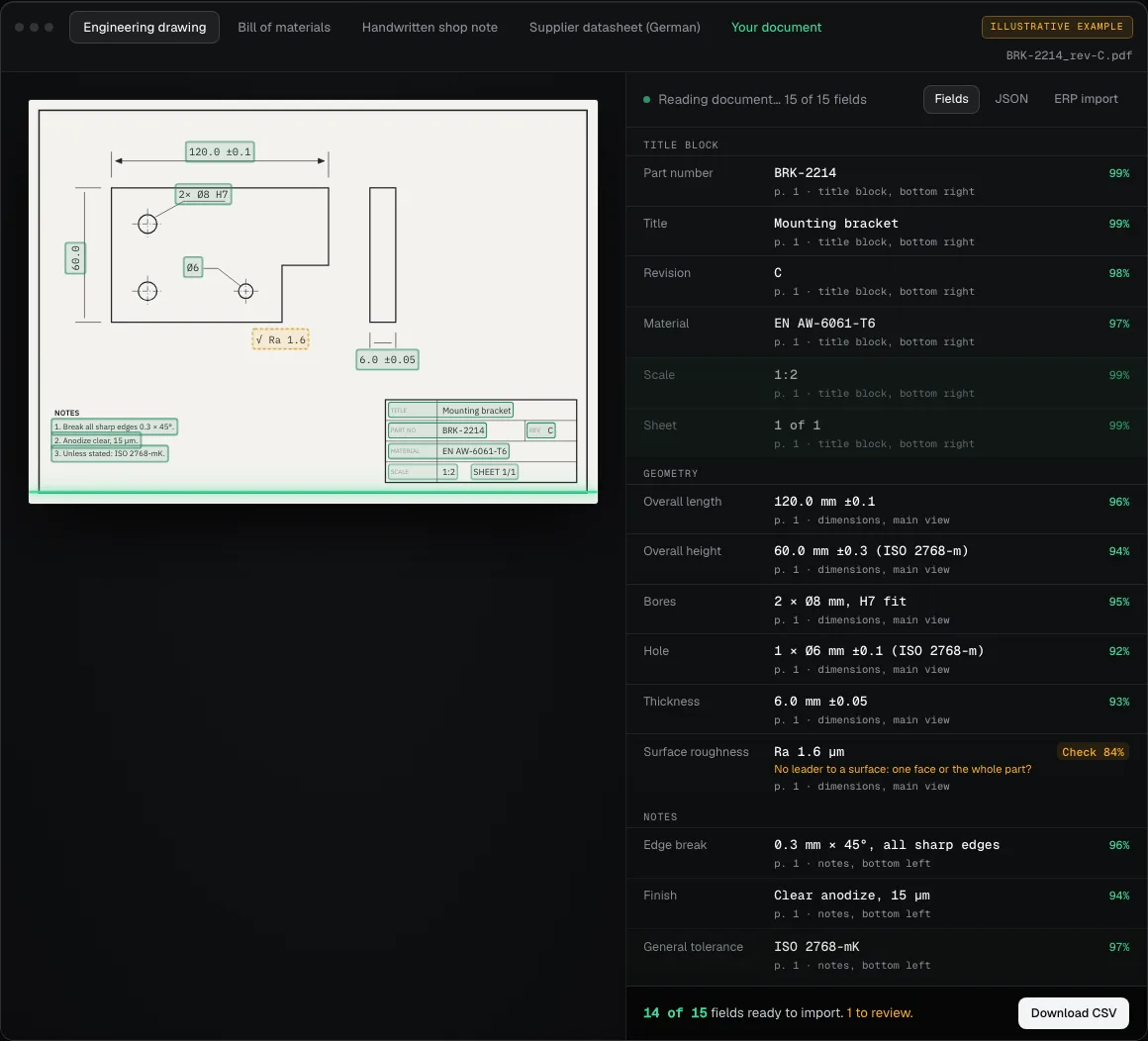
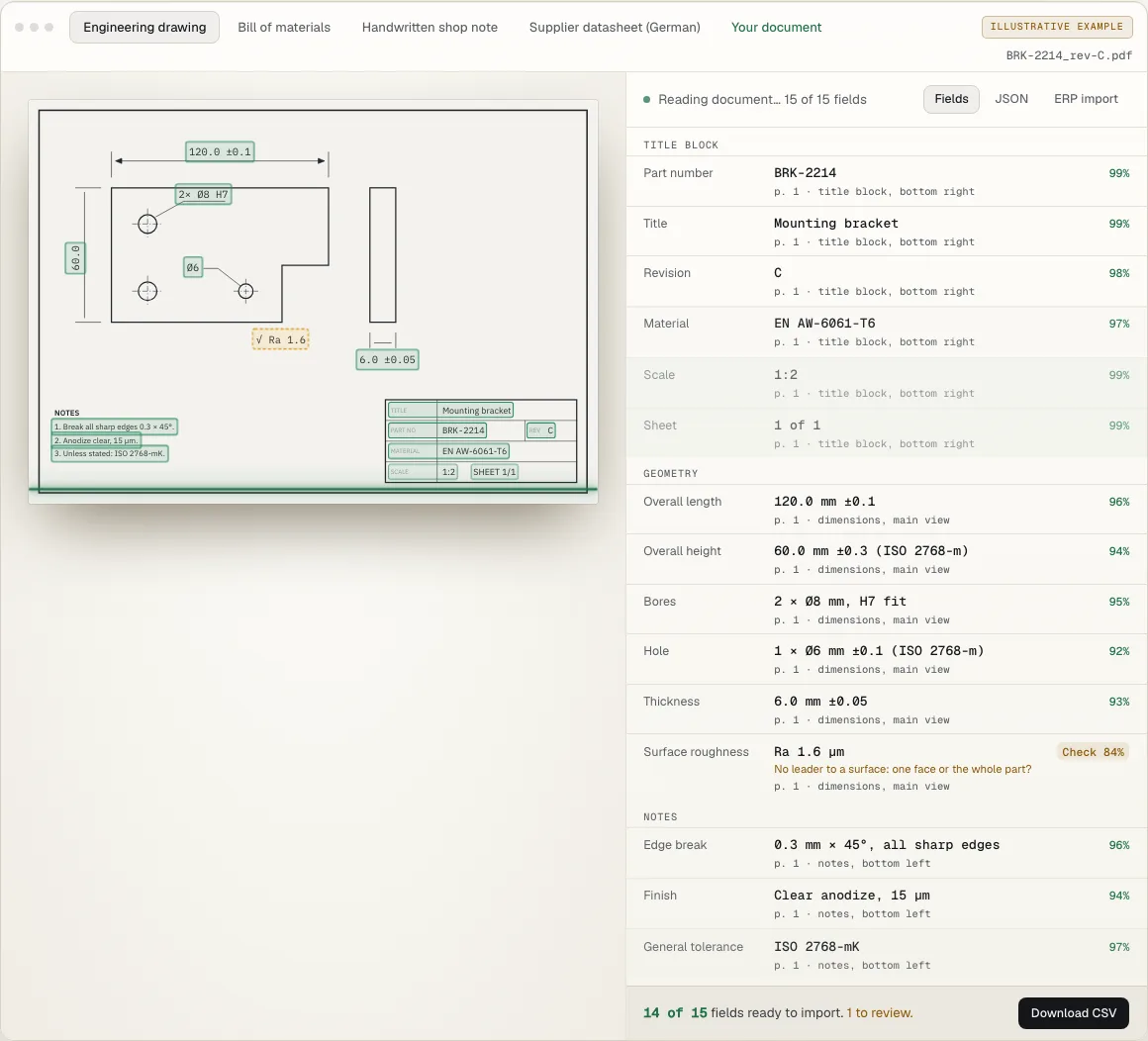
A flagged row shows an amber "Check 84%" badge and the note under the value. On the page, its box is amber and dashed. An unflagged field gets a plain green percentage and a solid green box. Hover or tap a row and its box lights up on the drawing. The bar at the bottom counts what is ready and what needs a look, and downloads the CSV.
Where a value sits on the page
Each field points at a shape on the page. The record holds the id of an SVG element, not coordinates. When the page draws, the demo measures that element and puts a rectangle around it with a little padding. The field list also shows the location in words, such as "p. 1 · title block, bottom right". The words come from the field's group, and a field can override them.
That is all it does. The samples are single pages, so the page is always 1, and there are no line or column numbers. The JSON and CSV downloads hold values only, with no page and no box. That last gap matters to us. A table that goes into an ERP should be able to carry its source with it, and the demo does not do that yet.
What happens with your own file
If you upload a file in the demo, the page sends it to an endpoint and reads nothing itself. The form says an engineer on our side runs your file, checks the output and emails you the fields within two business days. That is how a pilot works today. A person checks first.
So in a pilot you are the test. Put what we send back next to the rows you already trust, and tell us where it is wrong.